
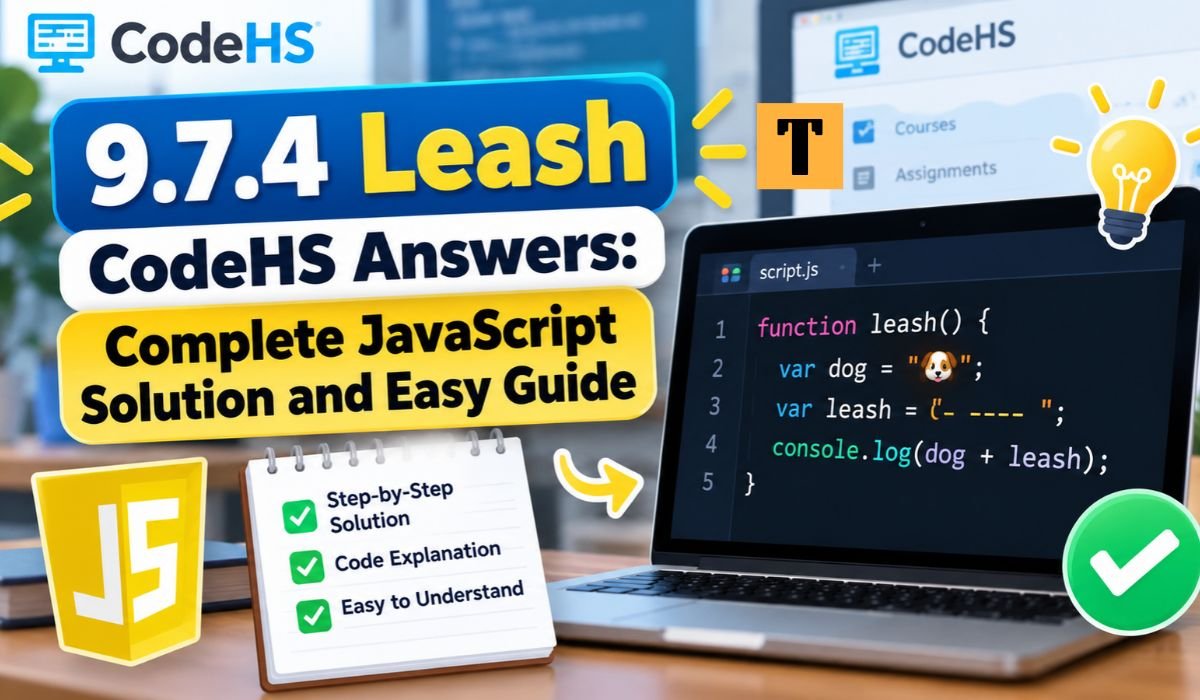
If you’ve been searching for 9.7.4 Leash CodeHS Answers, chances are you’ve reached an exercise where a ball needs to follow your mouse while remaining connected to a fixed point by a line. It sounds straightforward, but getting everything to move correctly can be frustrating when you’re still learning JavaScript.
The good news is that the Leash exercise doesn’t require complicated programming. Once you understand how mouse events, graphics objects, and functions work together, the solution becomes much easier to follow.
This assignment introduces a concept called event-driven programming. Instead of telling an object to move automatically, you write instructions that respond to the user’s actions. In this case, moving the mouse causes the ball and its connecting line to change position.
This guide walks through the complete JavaScript solution, explains the purpose of each important command, and covers the mistakes that commonly prevent the program from working. You’ll also learn how to test your code and make small changes that strengthen your understanding.
Quick Information About the CodeHS Leash Exercise
The following reference table brings together the main technical details you’ll encounter while completing the exercise.
| Information | Details |
|---|---|
| Exercise Name | Leash |
| Referenced Exercise Number | 9.7.4 |
| Learning Platform | CodeHS |
| Programming Language | JavaScript |
| Graphics Environment | CodeHS JavaScript Graphics |
| Main Objective | Make a Ball Follow the Mouse |
| Moving Graphics Object | Circle |
| Connecting Graphics Object | Line |
| Initial Position | Center of the Canvas |
| Example Ball Radius | 30 Pixels |
| Example Ball Color | Yellow |
| Example Line Color | Black |
| Starting Function | start() |
| Mouse Callback Function | leash(e) |
| Mouse Event Method | mouseMoveMethod() |
| Horizontal Mouse Position | e.getX() |
| Vertical Mouse Position | e.getY() |
| Circle Movement Method | setPosition() |
| Line Movement Method | setEndpoint() |
| Main Programming Concept | Event-Driven Programming |
| Expected Result | A Ball Following the Mouse With a Connected Line |
What Is the 9.7.4 Leash CodeHS Assignment?
The Leash exercise is part of the JavaScript Graphics learning experience in CodeHS. Its purpose is to introduce students to interactive graphics and demonstrate how objects can respond to mouse movement.
The finished program contains two graphical elements: a circle that represents a ball and a line that acts as its leash.
When the program starts, both objects are positioned at the center of the canvas. As you move your mouse, the ball follows the pointer. The line stretches toward the moving ball, but its starting point stays in place.
Although the result looks simple, several programming ideas are working together behind the scenes. You’re creating objects, storing references to them, registering an event handler, and updating coordinates whenever the mouse moves.
These skills aren’t limited to classroom exercises. Similar techniques are used in drawing applications, interactive websites, and simple computer games.
One detail worth checking is your course version. CodeHS offers several JavaScript courses, and exercise numbers or instructions may differ. The solution below follows the Leash behavior described here, but you should always compare it with your assigned requirements.
Understanding the CodeHS Leash Assignment Requirements
Before you begin coding, it helps to understand exactly what the program is supposed to do.
Imagine opening a graphics canvas and seeing a yellow ball sitting in the middle. A black line is connected to the ball, although you might not notice it immediately because both ends begin at the same location.
Now move your mouse toward the right side of the screen. The ball follows your pointer, and the line stretches from the center toward the ball. Move your mouse back, and the line becomes shorter.
That’s the essential behavior of the Leash program.
The important part is how the movement happens. You don’t need to create another circle or line every time the pointer changes position. Instead, JavaScript updates the existing objects.
In the example used throughout this guide, the ball has a radius of 30 pixels and is colored yellow. The line is black. These values are useful for demonstrating the program, although your particular assignment may specify different settings.
Complete 9.7.4 Leash CodeHS Answers With JavaScript Code
Here’s a complete JavaScript example that demonstrates the Leash exercise using the traditional CodeHS JavaScript Graphics environment.
var BALL_RADIUS = 30;
var ball;
var line;

function start() {
    line = new Line(
        getWidth() / 2,
        getHeight() / 2,
        getWidth() / 2,
        getHeight() / 2
    );

    line.setColor(Color.black);
    add(line);

    ball = new Circle(BALL_RADIUS);
    ball.setPosition(
        getWidth() / 2,
        getHeight() / 2
    );

    ball.setColor(Color.yellow);
    add(ball);

    mouseMoveMethod(leash);
}

function leash(e) {
    ball.setPosition(e.getX(), e.getY());
    line.setEndpoint(e.getX(), e.getY());
}
At first glance, the code might seem longer than necessary. However, each part has a specific purpose.
The program begins by creating a line and placing both of its endpoints at the center of the canvas. It then creates a yellow circle at the same location.
Once the objects are displayed, the program registers a mouse movement handler. Whenever you move the pointer, the leash(e) function updates the ball’s position and the endpoint of the line.
Because both objects use the same mouse coordinates, the line remains visually connected to the moving ball.
The methods used in this example are documented in the official CodeHS JavaScript Graphics reference. However, the example hasn’t been independently verified against the autograder for every version of exercise 9.7.4.
Step-by-Step Explanation of the Leash CodeHS Solution
The easiest way to understand this program is to look at what happens from the moment it starts.
First, JavaScript declares three variables. BALL_RADIUS stores the circle’s radius, while ball and line will hold references to the graphical objects.
Next comes the start() function. In the traditional CodeHS JavaScript Graphics environment, this function provides the initial setup for the program.
Inside start(), the line is created using four coordinates. The first two determine where it begins, while the remaining two determine where it ends. All four initially point to the canvas center.
After that, the program creates the circle using new Circle(BALL_RADIUS). It positions the ball in the center, gives it a yellow color, and adds it to the canvas.
The final instruction inside start() is particularly important:
mouseMoveMethod(leash);
This tells CodeHS which function should respond when the mouse moves.
The actual movement happens inside leash(e). That function changes the circle’s position and updates the line endpoint.
By keeping the setup instructions separate from the movement instructions, the program remains easier to read and troubleshoot.
How Mouse Events Work in CodeHS JavaScript
Mouse events are what make the Leash exercise interactive.
In an ordinary program, instructions often run in sequence. With event-driven programming, certain functions run in response to actions such as moving the mouse, clicking a button, or pressing a key.
CodeHS provides mouseMoveMethod() to register a function that responds to mouse movement over the graphics canvas.
For the Leash exercise, the registration looks like this:
mouseMoveMethod(leash);
Notice that leash appears without parentheses. That’s intentional. You’re passing the function to CodeHS so it can be called later.
If you wrote mouseMoveMethod(leash()), JavaScript would attempt to execute the function immediately instead.
When the mouse moves, CodeHS supplies an event object to the callback. The example names this object e.
Two methods provide the information the program needs. e.getX() returns the horizontal pointer position, while e.getY() returns the vertical position.
Suppose the pointer moves to coordinates (200, 150). The callback uses those values to position the ball and update the line endpoint.
CodeHS also supports other mouse interactions, including clicking and dragging. Once you understand mouse movement callbacks, learning those related methods becomes much easier.
Why Global Variables Matter in the Leash Exercise
One of the most common problems students encounter involves variable scope.
In JavaScript, where you declare a variable affects which functions can access it.
The Leash example declares ball and line outside both functions. These are global variables, meaning the functions can share references to the same graphical objects.
Inside start(), the program assigns a circle to ball and a line to line.
Later, when leash(e) runs, it can access those existing objects and change their positions.
Problems can arise if you accidentally declare new local variables inside start().
For example, writing var ball = new Circle(30); inside that function would create a local variable named ball. If the global ball variable remains unassigned, the callback won’t have the circle reference it expects.
The result may be an error when JavaScript attempts to call setPosition().
Global variables are a simple way to manage shared references in this beginner exercise. They’re not the only option, though. Larger applications often use closures, classes, or other structures to organize shared state.
How to Create and Position the Ball in CodeHS
Creating the ball is one of the simplest parts of the assignment.
CodeHS provides a Circle constructor that accepts a radius. In the example, new Circle(BALL_RADIUS) creates a circle with a radius of 30 pixels.
Once the circle exists, you need to decide where it should appear.
That’s where setPosition() comes in. The method accepts an X coordinate and a Y coordinate, which together determine the location of the circle’s center.
The Leash program uses getWidth() / 2 and getHeight() / 2 to calculate the center of the graphics canvas.
The circle is then colored yellow using setColor() and displayed using add().
Here’s the important distinction: creating a circle and moving a circle are different operations.
The constructor creates the object. The setPosition() method changes where that existing object appears.
When the mouse moves, there’s no reason to create another ball. The program simply updates the position of the one already on the canvas.
CodeHS also provides methods such as setRadius(), allowing you to change a circle’s size after creating it.
How to Create and Update the Leash Line
The line works a little differently from the circle because it has two endpoints.
When creating a line, you provide four coordinates: the starting X position, starting Y position, ending X position, and ending Y position.
In the Leash example, all four coordinates initially represent the center of the canvas.
This means the line starts with zero length. You might not see it until the mouse begins moving.
Once movement occurs, the program calls line.setEndpoint() using the current pointer coordinates.
Only the endpoint changes. The starting point stays fixed.
That’s what produces the stretching effect.
It’s also worth understanding the difference between setEndpoint() and move(). The first changes the line’s ending position, while the second shifts the line’s position.
Another small design detail improves the appearance of the program. The line is added before the circle, allowing the ball to appear in front where the two graphics overlap.
Understanding the CodeHS Graphics Coordinate System
If you’re new to graphics programming, coordinates can feel confusing. Fortunately, the CodeHS coordinate system follows a consistent pattern.
The top-left corner of the graphics canvas is represented by (0, 0).
As you move toward the right, X values increase. As you move downward, Y values increase.
Imagine a canvas measuring 400 pixels wide and 300 pixels tall.
To find its center, divide each dimension by two. The horizontal center is 200, and the vertical center is 150.
That gives you the coordinate pair (200, 150).
Rather than typing fixed values, the Leash program uses getWidth() and getHeight() to calculate the center automatically.
This makes the code more adaptable to different canvas dimensions.
When the mouse moves, the event object provides coordinates relative to the graphics canvas. Those values determine where the ball and line endpoint should appear.
Once you understand this system, positioning objects in other CodeHS graphics assignments becomes much more intuitive.
Common 9.7.4 Leash CodeHS Errors and How to Fix Them
A program doesn’t have to be complicated to produce confusing errors. Sometimes a single missing statement is enough to prevent everything from working.
If the ball appears but doesn’t follow the mouse, start by checking mouseMoveMethod(leash). Without the event registration, CodeHS won’t know which function should handle movement.
If the ball moves but the line stays in place, look at the setEndpoint() statement. The line needs to receive the same coordinates as the circle.
Another frequent issue is incorrect variable scope. If the callback can’t access the objects created in start(), it won’t be able to update them.
When neither object appears, check whether you’ve included add(ball) and add(line).
Capitalization matters, too. JavaScript treats setPosition() and setposition() as different names.
Finally, avoid creating new circles or lines inside the mouse movement callback. Mouse events can occur many times in quick succession, and repeatedly creating objects may clutter the canvas.
The most effective way to troubleshoot is to check the program in stages. Confirm that the graphics appear, verify that the event handler runs, and then inspect the movement instructions.
How to Test Your CodeHS Leash Program Correctly
Testing helps you catch mistakes before submitting your assignment.
Start by running the program and looking at the initial canvas. The circle should appear in the center. The line may be difficult to see because its endpoints begin at the same location.
Next, move the pointer toward the upper-right corner. The ball should follow, and the line should stretch toward it.
Try moving the mouse toward the opposite corner. The connection should remain intact.
Then bring the pointer back toward the center. As the ball approaches its original position, the line should become shorter.
Watch for unexpected behavior. If multiple circles appear or the line moves away from its fixed starting point, something in the code needs attention.
Once the program looks correct, review the assignment instructions one final time.
A visually successful program isn’t always identical to what an autograder expects. Some assignments require particular function names, dimensions, colors, or other details.
Simple Ways to Customize the CodeHS Leash Program
After completing the original exercise, experimenting with the code can help you understand it more deeply.
Changing the ball’s color is an easy place to begin. You can also adjust its radius to see how object size affects the display.
The leash itself can be customized. For example, CodeHS provides setLineWidth(), which changes the line’s thickness.
You might also experiment with moving the fixed endpoint away from the center. Placing it near a corner creates a different visual effect while preserving the same mouse movement behavior.
For a more challenging experiment, consider keeping the entire ball inside the graphics canvas.
Normally, the ball’s center follows the pointer directly. Near the edge, part of the circle may extend outside the visible area. You could prevent this by limiting the center coordinates according to the ball’s radius.
These changes are useful for learning, but don’t include them in your submitted assignment unless they’re allowed.
What Programming Skills Do Students Learn From Leash?
The Leash exercise is small, but the concepts behind it appear in much larger programs.
One of the most valuable lessons is event-driven programming. Instead of moving objects through a fixed sequence of commands, the program waits for user activity and responds when it happens.
The assignment also introduces persistent graphics objects. The circle and line remain available after the setup function finishes, allowing later events to change their properties.
You’ll also gain experience working with callbacks, coordinates, functions, and shared object references.
These skills provide a foundation for more advanced interactive projects.
For example, a drawing application needs to track mouse movement to create lines. A simple game might use pointer coordinates to control a character or aim at a target.
The same basic principles appear in many different forms.
Helpful Tips for Completing CodeHS JavaScript Exercises
When you’re learning to code, understanding the problem is often more important than writing the solution quickly.
Before starting an assignment, identify what the program should display and how the user is expected to interact with it.
For Leash, the essential questions are straightforward. What moves? What stays fixed? Which event causes the movement?
Once you know the answers, build the program gradually.
Start by creating the circle and line. Make sure they appear in the correct location. Then add the mouse movement callback.
If an error appears, read the message carefully rather than changing several parts of the code at once.
It’s also important to use the correct CodeHS environment.
Traditional JavaScript Graphics examples commonly use start() and var, while JavaScript ES6 materials may demonstrate main(), let, and const.
The underlying graphics concepts are similar, but the expected program structure can differ. Follow the conventions shown in your course.
Final Thoughts
The 9.7.4 Leash CodeHS Answers exercise offers a practical introduction to interactive JavaScript Graphics. What begins as a simple ball-and-line animation teaches several ideas that are essential to programming.
By creating the graphics objects once, registering a mouse movement callback, and updating their coordinates, you can build a program that responds naturally to user input.
More importantly, the exercise shows how functions, object references, and events work together.
If your first attempt doesn’t behave as expected, focus on understanding each part of the program rather than replacing the entire solution. Small mistakes are easier to fix when you know what the code is supposed to accomplish.
Once you’ve mastered this example, you’ll have a stronger foundation for future CodeHS exercises involving dragging, clicking, animation, and other interactive graphics.
FAQs About 9.7.4 Leash CodeHS Answers
What Is the Answer to CodeHS 9.7.4 Leash?
The solution creates a circle and a line at the center of the graphics canvas. It then registers a mouse movement callback that updates the circle’s position and the line’s endpoint using the current pointer coordinates. The complete example is included earlier in this guide. Always check your assignment’s specific requirements before submitting it.
How Do You Make a Ball Follow the Mouse in CodeHS?
You can make a ball follow the mouse by registering a callback with mouseMoveMethod(). Inside that callback, use ball.setPosition(e.getX(), e.getY()) to update the circle’s position. Each time the pointer moves over the canvas, CodeHS supplies the coordinates needed to reposition the ball.
What Does mouseMoveMethod Do in CodeHS?
The mouseMoveMethod() function registers a callback that runs whenever CodeHS detects mouse movement over the graphics canvas. Instead of repeatedly checking the pointer’s location yourself, you provide a function that CodeHS calls when movement occurs. This makes it easier to build interactive graphics programs.
Why Is My Leash CodeHS Program Not Working?
Several problems can prevent the Leash program from working. The event handler might not be registered, the graphics objects may not have been added to the canvas, or the callback may be referencing incorrectly scoped variables. Spelling and capitalization errors can also cause problems. Checking each part separately usually makes the issue easier to identify.
What Does setEndpoint Mean in CodeHS?
The setEndpoint() method changes the ending coordinates of an existing line. In the Leash exercise, it moves the line’s endpoint to match the mouse position while leaving the starting point fixed. This allows the line to stretch and shrink as the ball moves around the canvas.
Why Are Global Variables Used in the Leash Exercise?
Global variables allow different functions to access the same graphics objects. In this exercise, start() creates the circle and line, while leash(e) updates them later. Declaring the references outside the functions makes them accessible to both. It’s a convenient approach for this beginner assignment, although larger applications may use other methods.
Can I Change the Ball’s Color or Radius?
Yes. CodeHS allows you to change a circle’s color using setColor() and adjust its radius through the constructor or setRadius(). These changes are useful for experimenting with graphics properties. However, if your assignment specifies particular colors or dimensions, keep those values when submitting your work.
Is the CodeHS Leash Exercise the Same in Every Course?
Not necessarily. CodeHS offers different courses and curriculum versions, so exercise numbers, starter code, and specific instructions may vary. The basic programming concepts can remain similar, but you shouldn’t assume that every Leash assignment has identical requirements. Check the instructions provided in your own course.
Learn more and explore exciting content on: HRMtaila Explained: Benefits, Features, Uses, and Future of AI in HR














Leave a Reply