
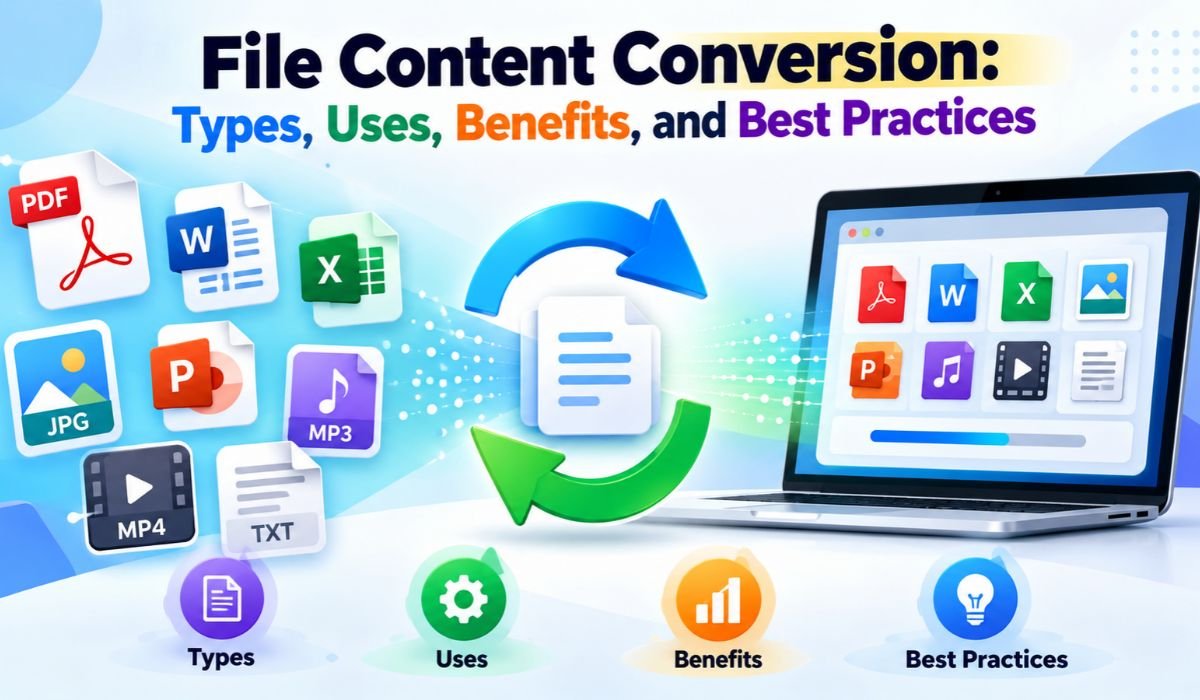
Digital files quietly power much of modern life. Documents move between offices, photographs travel across devices, spreadsheets feed business systems, and website content passes through publishing platforms every day. Behind all of this is a basic challenge: a file that works perfectly in one program may not be suitable for another.
That’s where File Content Conversion comes in. It allows information stored in one file format to be transformed into another so it can be opened, shared, published, analyzed, processed, or stored in a more appropriate way.
It’s easy to think of conversion as simply changing the letters at the end of a filename, but genuine conversion goes much deeper. Software must read the source file, understand the information it contains, determine how that information can be represented in the destination format, and then create a valid new file.
That process has become increasingly important in 2026. Files now move constantly between desktop applications, browsers, mobile devices, databases, cloud services, and automated workflows. Knowing how File Content Conversion works can help users make better choices, avoid compatibility problems, protect sensitive information, and reduce the risk of losing important data along the way.
What Is File Content Conversion?
File Content Conversion is the process of transforming information represented in one file format into a valid representation in another.
Consider a DOCX document. It isn’t simply a block of text stored under a Microsoft Word filename. Modern Office Open XML documents are structured packages containing different parts and relationships, with document information represented through XML and related resources. A converter has to understand the relevant parts of that structure before it can meaningfully transform the document into another format.
The same basic principle applies to spreadsheets, images, and structured data. CSV, for example, represents tabular information as delimited text. JSON organizes information through objects, arrays, names, and values. Moving data between the two requires more than changing an extension. The converter has to interpret the original structure and decide how it should be represented in the new one.
Importantly, successful conversion doesn’t always mean preserving every original byte. What matters is preserving the information and characteristics needed for the intended purpose while creating a valid file in the destination format.
Quick Information
| Information | Details |
|---|---|
| Main Topic | File Content Conversion |
| Basic Purpose | Transform Data Into Another File Format |
| Common Document Formats | DOCX, TXT, HTML, PDF |
| Common Image Formats | PNG, JPEG, WebP, BMP |
| Common Data Formats | CSV, JSON, XML, XLSX |
| Common Web Formats | HTML And Markdown |
| Main Conversion Types | Lossless And Lossy |
| Basic Process | Read, Interpret, Transform, And Encode |
| Extension Change | Not The Same As Conversion |
| Compression | Different From Conversion |
| Browser Processing | Available For Many Conversion Tasks |
| Client-Side Processing | Can Process Supported Files Locally |
| Server Processing | Uses Remote Infrastructure |
| Major Benefit | Better Compatibility |
| Major Limitation | Possible Information Loss |
| Security Consideration | Handling Of Sensitive Files |
| Recommended Practice | Preserve The Original File |
| Essential Final Step | Verify The Converted Output |
How File Content Conversion Works
The technology behind file conversion varies considerably from one format to another, but the general process follows a recognizable pattern.
First, conversion software reads the source file and identifies or expects its structure. It then parses, decodes, or otherwise interprets the information that matters. Depending on the file, that could include text, tables, images, spreadsheet cells, metadata, formatting instructions, or raw pixel data.
Next comes the most important stage: transformation. The converter determines how the source information can be represented using features available in the destination format. Once that mapping is complete, the result is encoded or serialized according to the requirements of the new format.
This is where conversion can become complicated. Two formats may appear to serve similar purposes while supporting very different features.
A richly formatted document might contain custom fonts, images, page layouts, tables, comments, headers, and other elements. Plain text has no native system for preserving most of those features. Converting that document to TXT may successfully retain the readable words while inevitably leaving much of the original presentation behind.
For that reason, conversion quality shouldn’t be judged solely by whether the output opens. A better measure is whether the information that matters has survived accurately.
File Content Conversion Vs File Renaming
File renaming and File Content Conversion are often confused, but they’re fundamentally different operations.
Suppose an image contains data encoded according to the PNG format. If picture.png is renamed picture.jpg, only the filename has changed. The underlying image hasn’t automatically been re-encoded as JPEG.
Some applications inspect a file’s contents and may still recognize the renamed file as PNG. Other software may reject it, produce an error, or behave unpredictably because the extension no longer matches the internal format.
A real PNG-to-JPEG conversion takes a different approach. The software decodes the source image and creates new image data according to the rules of the JPEG format.
The same principle applies to documents, spreadsheets, audio, video, and structured data. File extensions are useful identifiers, but they don’t define the actual internal structure on their own. Changing an extension is therefore not a dependable substitute for genuine conversion.
File Conversion Vs File Compression
Conversion is also commonly confused with compression, although the two serve different purposes.
File conversion changes how information is represented or changes the format used to store it. Compression, on the other hand, is primarily concerned with representing information using less storage space.
There are situations where the two overlap. Converting an image into a format that uses different compression methods may produce a smaller output. That doesn’t mean conversion automatically reduces file size, though. Depending on the source, destination, content, and settings, a converted file could even become larger.
Compressed archives make the distinction easier to see. Several files can be placed into a compressed archive without changing the individual formats of the files stored inside. Conversion, by contrast, changes the representation of the file itself.
Knowing the difference helps users choose the right process. If compatibility is the problem, conversion may be needed. If storage is the primary concern, compression may be the more relevant solution.
Major Types Of File Content Conversion
File Content Conversion covers a remarkably broad range of digital information, and each category presents its own challenges.
Document conversion involves formats such as DOCX, TXT, HTML, and PDF. People commonly convert these files for publishing, editing, sharing, accessibility, and archiving. Because document formats can differ significantly in how they handle layouts and rich content, preservation quality can vary.
Image conversion includes formats such as PNG, JPEG, WebP, GIF, and BMP. Here, the choice of destination can affect transparency, animation, compression, metadata, compatibility, and visual quality.
Data and spreadsheet conversion involves formats such as XLSX, CSV, JSON, and XML. These conversions are especially common in reporting, software development, database work, analytics, and information exchange.
Multimedia conversion introduces another layer of complexity. Audio and video files can involve containers, codecs, bitrate, resolution, frame rate, audio characteristics, and compression settings, all of which may influence the result.
Web-focused conversion includes tasks such as transforming Markdown into HTML or preparing document content for web publishing.
Although all of these processes fall under the broad umbrella of File Content Conversion, there is no single method that works identically for every format.
Common Uses Of File Content Conversion
Most file conversions begin with a practical problem: the existing format isn’t suitable for what needs to happen next.
A publishing team may have an article written in a document editor but need clean HTML for a website. Developers may receive tabular information that needs to be represented as JSON for an application workflow. Analysts may export spreadsheet information as CSV because another program accepts simple tabular text more easily.
Images present another familiar use case. Website teams may convert suitable images into formats that offer useful compression or delivery characteristics while still considering browser compatibility and the visual features each image requires.
Organizations also rely on conversion when migrating older records, integrating software systems, exchanging information between applications, preparing datasets for analysis, or creating files for long-term storage.
The common thread is compatibility. When the current format becomes a barrier, conversion provides a bridge between the source information and its next destination.
Lossless And Lossy Conversion
One of the most useful concepts to understand is the difference between lossless and lossy processing.
Lossless processing aims to preserve the information being represented without deliberately discarding it. Lossy processing accepts irreversible information loss, usually because doing so provides another advantage, such as substantially reducing the size of a media file.
JPEG compression is a familiar example of lossy processing. Depending on the encoding settings, image information can be approximated or discarded to reduce storage requirements. Once that information is removed, simply converting the image into another format later won’t recreate the original pixels exactly.
The distinction becomes more complicated when dealing with documents and spreadsheets. Calling an entire format-to-format conversion “lossless” can sometimes hide important limitations.
Take XLSX to CSV. The conversion may preserve selected cell values perfectly well, but CSV cannot reproduce the complete workbook environment. Multiple worksheets, formatting, charts, comments, formulas in their original form, and other workbook features may not survive.
Likewise, converting DOCX to TXT may preserve readable text while dropping images, fonts, page formatting, and other rich document features.
Instead of asking only whether a conversion is lossless, users should ask a more practical question: Which information must remain intact?
What Can Be Lost During Conversion?
Data loss during conversion isn’t limited to obvious changes in image quality. Depending on the formats involved, much subtler information can disappear.
A converted document may lose fonts, styles, comments, headers, footers, page layouts, embedded objects, or advanced formatting. Spreadsheet conversions can affect formulas, worksheets, charts, cell formatting, metadata, and data types.
Images have their own concerns. A format change can affect transparency, animation, metadata, color information, or fine visual detail. Audio and video conversions may introduce quality changes when lossy encoding is involved.
Text can also suffer if character encoding is handled incorrectly. Accented characters, symbols, or non-Latin scripts may appear as incorrect or unreadable characters when the source information is interpreted using the wrong encoding.
Not every such change means the conversion software has failed. In many cases, the target format simply has no equivalent way to store a particular source feature.
That’s why important conversions should begin with a clear understanding of what must be preserved.
Benefits Of File Content Conversion
The biggest practical benefit of File Content Conversion is interoperability. A well-chosen conversion can make information easier to open, publish, exchange, analyze, archive, or process using another system.
Businesses often need to move information between applications that weren’t designed around identical formats. Developers may need data represented in structures their software can process efficiently. Publishers frequently transform content into web-friendly formats, while analysts may need simpler representations of spreadsheet data.
There can be performance benefits as well. Certain format changes may reduce file size or improve web delivery when the destination format is well suited to the content and the user’s environment.
Still, conversion shouldn’t automatically be viewed as an upgrade. A newer format isn’t necessarily better for every workflow, and reducing file size isn’t useful if essential information disappears in the process.
The right format is ultimately the one that meets the intended purpose while preserving the information users actually need.
How Browser-Based File Conversion Works
Modern web browsers can do far more than display websites. They provide programming capabilities that allow web applications to read user-selected files, work with binary information, manipulate supported content, and create new output.
Browser technologies can represent binary file data in memory using structures such as ArrayBuffer. For supported image workflows, browser APIs can also decode, process, and generate image data. Canvas-based operations, for example, can create image output in formats supported by the browser.
More complicated documents and data formats generally require specialized software libraries capable of understanding their internal structures.
This makes client-side File Content Conversion practical for many everyday jobs without requiring traditional desktop software. It does have limits. Available memory, browser capabilities, file size, format complexity, and the quality of the converter’s implementation can all affect what can be handled successfully.
For very large or highly specialized files, other processing methods may still be more appropriate.
Client-Side Vs Server-Side Conversion
Where a file is processed matters, especially when privacy is a concern.
A genuinely client-side converter can process supported information on the user’s own device. The source file doesn’t need to be sent to a remote conversion server, which can reduce unnecessary exposure of sensitive information.
Server-side conversion follows a different model. The source file is transmitted to remote infrastructure, processed there, and the converted result is returned to the user.
Neither approach should be judged solely by where the conversion happens. Server-side systems can handle demanding workloads and specialized software that may not run effectively inside a browser. At the same time, remote processing raises additional questions about transmission, access, storage, retention, and deletion.
There’s also an important misconception worth clearing up: a converter doesn’t necessarily process files locally simply because it runs through a website. Web pages can transmit information to remote systems.
When privacy matters, users should find out where the file is actually processed and what information leaves their device.
Is File Content Conversion Safe?
File Content Conversion can be safe, but the answer depends on the software, processing method, type of file, and sensitivity of the information involved.
Everyday images or public documents may present relatively modest privacy concerns. Contracts, financial records, customer information, personal documents, private photographs, and confidential business files deserve much more careful handling.
When conversion genuinely happens locally, users can reduce the need to expose source files to remote conversion infrastructure. When a server-based tool is involved, it becomes important to understand how information is transmitted, whether files are retained, who may have access, and how deletion is handled.
The conversion software itself matters too. Tools should come from trustworthy sources and receive appropriate maintenance, particularly when they process complex or potentially untrusted files.
For highly confidential information, convenience shouldn’t take priority over security.
Choosing A Reliable File Converter
There isn’t one converter that’s automatically best for every job. A better approach is to choose a tool according to the source file, desired output, sensitivity of the information, and features that must survive.
Start by checking whether the converter genuinely supports the exact source and destination formats. Then think about preservation.
For documents, layout, tables, images, and formatting may be important. Spreadsheet users may care more about worksheets, cell values, formulas, and data types. With images, transparency, dimensions, metadata, animation, and visual quality may influence the decision.
Other practical considerations include file-size limits, batch conversion, device and browser compatibility, output controls, privacy practices, and whether processing occurs locally or remotely.
The best converter isn’t necessarily the one with the longest list of supported formats. It’s the one that produces a dependable result for the specific task.
Common File Conversion Problems
When conversion goes wrong, the cause is often a mismatch between what exists in the source and what the destination format can represent.
A damaged source file may fail to parse. Missing or unsupported fonts can change the appearance of a document. Incorrect character encoding can turn readable text into strange symbols. Spreadsheet features may disappear when information is moved into a simpler data format.
Image conversions can introduce different problems, including lost transparency or reduced detail. Very large files may also exceed browser memory, application limits, or service restrictions.
The safest response to a failed conversion is to leave the original untouched. Confirm that the source opens normally, check whether the chosen destination format supports the required features, and inspect the output carefully.
Repeated lossy conversion should also be avoided when media quality matters. Once information has been discarded, another conversion cannot reliably reconstruct what is no longer there.
Best Practices For File Content Conversion
A dependable conversion workflow begins before any processing takes place.
The first priority is protecting the source. Keep an untouched original until you’re confident that the converted version contains everything you need. For valuable business records, photographs, research data, or other irreplaceable information, maintaining a backup is especially important.
Next, choose the destination according to the final purpose. Don’t select a format simply because it’s popular or newer. Think about the application that will open the file, the features that need to remain, and whether quality or file size is the bigger priority.
Sensitive information deserves additional attention. Determine whether the converter processes data locally or remotely and consider its privacy practices before providing confidential material.
Finally, don’t assume that a successful download means the conversion was successful in every meaningful sense. Open the output and inspect it.
Text, tables, formulas, images, worksheets, transparency, links, formatting, metadata, and media quality may all deserve attention depending on the file.
For professional publishing, migration, archival, or business workflows, verification should be considered part of the conversion itself.
How To Verify A Converted File
Verification is one of the easiest steps to skip and one of the most valuable when accuracy matters.
Simply opening the converted file isn’t enough. Compare important elements against the original and look for differences that could affect how the information is used.
For documents, inspect headings, tables, special characters, images, and important layout elements. With spreadsheet information, check representative values, dates, record counts, and formulas where relevant. Images should be reviewed for dimensions, orientation, transparency, and visible quality.
Professional or automated workflows can go further. Depending on the task, teams may validate the resulting file structure, compare record counts, test output against relevant format requirements, or use hashes where appropriate to verify data that is expected to remain identical.
The amount of checking should reflect the importance of the file. A casual image conversion might need only a quick visual inspection. A business data migration deserves much stronger validation.
Advantages And Limitations Of File Content Conversion
File conversion makes digital information remarkably flexible. It allows content to move between applications, databases, publishing systems, devices, and workflows that might otherwise struggle to communicate.
That flexibility comes with limits.
Every destination format has boundaries. Complex formatting can change. Metadata can disappear. Media quality may decline. Advanced features may have no equivalent in the destination format. When remote processing is involved, privacy can become another consideration.
For these reasons, the goal shouldn’t be to convert every file into the newest or smallest available format.
Good File Content Conversion is about suitability. The output should work for its intended purpose while preserving the information and quality that matter.
Final Thoughts
File Content Conversion may sound like a technical subject, but the idea behind it is straightforward. Software reads information represented according to one format and transforms it into a valid representation that another format can support.
That process sits behind many familiar tasks, from preparing documents for the web and exchanging structured data to converting images and moving business information between applications.
The key is to focus on what needs to survive.
Sometimes that’s simply the readable text. In other cases, formulas, metadata, transparency, formatting, visual quality, or complex document features may be essential. Understanding those requirements before conversion makes it much easier to choose the right destination and avoid unpleasant surprises afterward.
Keep the original file, select formats according to purpose, understand what may change, protect sensitive information, and verify important results. With those habits in place, File Content Conversion becomes a dependable bridge between otherwise incompatible digital formats.
FAQs About File Content Conversion
What Is File Content Conversion?
File Content Conversion is the process of interpreting information represented in one file format and transforming it into a valid representation in another. Genuine conversion changes how the content is structured or encoded rather than simply changing the file’s extension.
Does Changing A File Extension Convert The File?
No. Changing an extension usually alters only the filename. It doesn’t automatically restructure or re-encode the underlying content according to the destination format. Proper conversion requires the actual file data to be interpreted and transformed.
Is File Conversion The Same As Compression?
No. Conversion changes a file’s format or representation, while compression focuses on reducing the amount of storage needed to represent information. The two can occur together, but they aren’t the same process.
Can File Conversion Cause Data Loss?
Yes. Information can be lost when the destination format doesn’t support features available in the source or when the converter doesn’t preserve them. Depending on the files involved, this could include formatting, formulas, metadata, transparency, images, worksheets, or other information.
Does File Conversion Reduce Quality?
Not necessarily. It depends on the formats, settings, and conversion method. Some processes can preserve the information needed for the task very accurately, while lossy media conversions deliberately discard information and may reduce measurable quality.
Can Files Be Converted Without Uploading Them?
Yes. Some software can process supported files directly on the user’s device, including web applications designed for client-side conversion. However, users shouldn’t assume that every browser-based converter works locally. The processing model should be verified when privacy matters.
Are Browser-Based File Converters Safe?
They can be, but running inside a browser doesn’t automatically make a converter private or secure. Users should consider where processing occurs, whether information is transmitted to remote servers, how sensitive files are handled, and whether the provider clearly explains its privacy and security practices.
Can A Converted File Be Restored To Its Original Format?
A converted file can sometimes be converted back to the original format type, but that doesn’t guarantee restoration of the original information. If data was discarded during an earlier conversion, changing the format again generally can’t recreate it exactly. Keeping the untouched source file remains the safest practice.
Learn more and explore exciting content on: EmbedSocial Instagram Story Viewer: Features, Benefits, and How It Works














Leave a Reply